


Guide
Change your website yourself
You change texts and images directly on your website. For bigger requests, describe them in the change chat. This guide shows every step using koellich.com, the website of our founder Florian Köllich.
The dialogs and the chat are in German, so buttons and messages appear here as they read on screen, with the English in brackets. On the English pages of your website the bar at the top is in English.
What you can change
You work directly on your own website, in the browser, on a computer or a phone.
Headings, texts, lists, button labels and images. These changes use no credit. Change a text, replace an image.
Texts with a link or bold type, questions and answers, the menu, new sections and design. You describe the request in one sentence. Go to the change chat.
A menu or a PDF to download, where we have set this up for you. Replace a PDF.
Google Analytics, Meta Pixel or a booking window from another provider. Analytics and scripts.
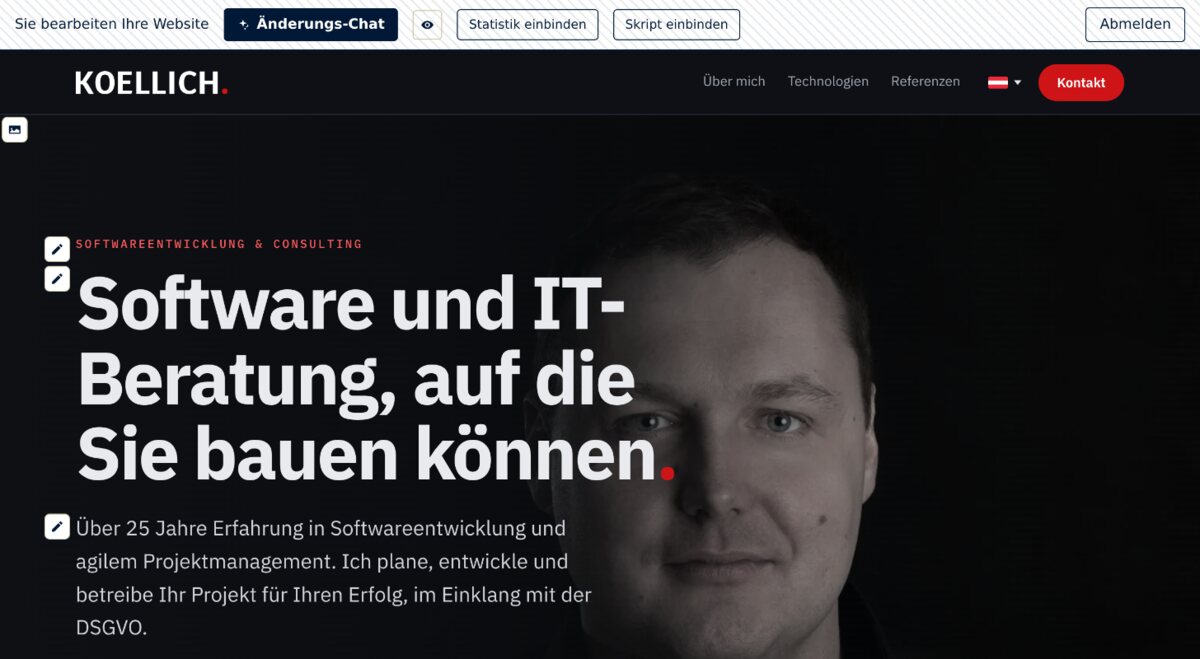
How to sign in
You sign in with a link you receive by email. You need no password for this.
- Open the addressAdd /update to the address of your website. In our example that is koellich.com/update.
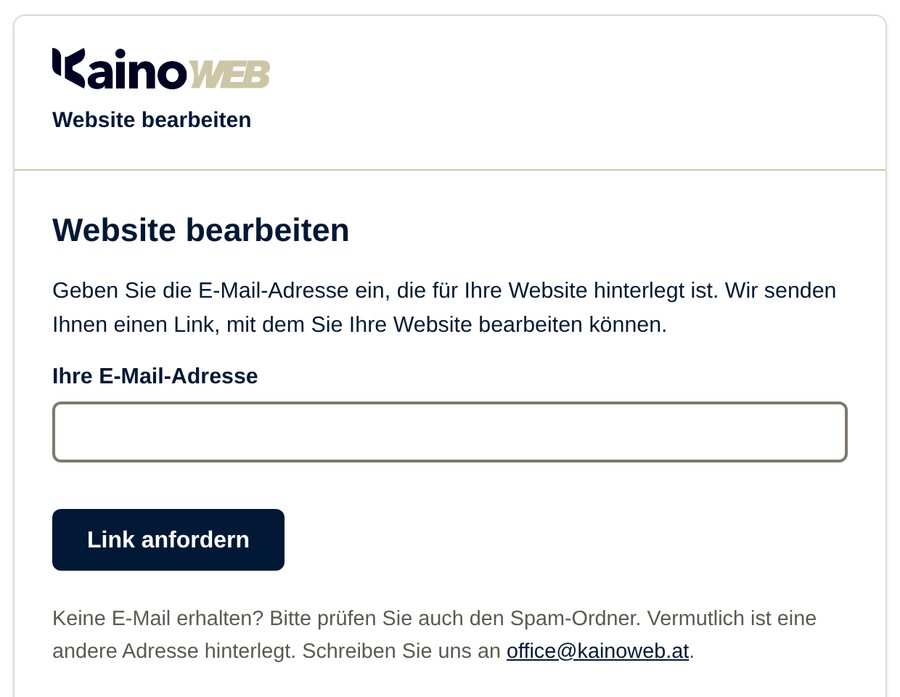
- Enter your email addressUnder „Ihre E-Mail-Adresse“ (Your email address), enter the address you ordered with. Click „Link anfordern“ (Request link).
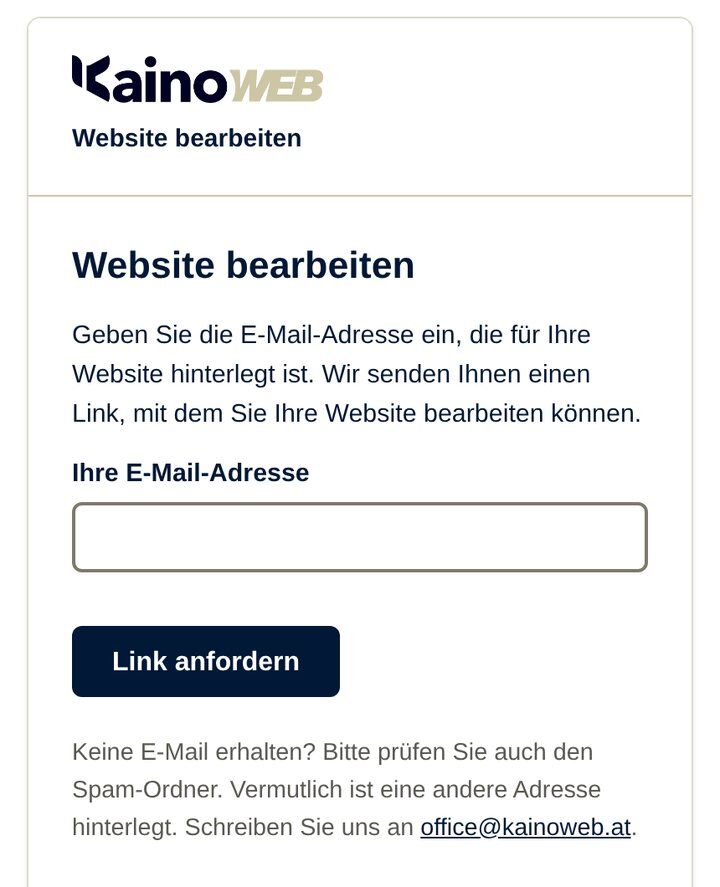
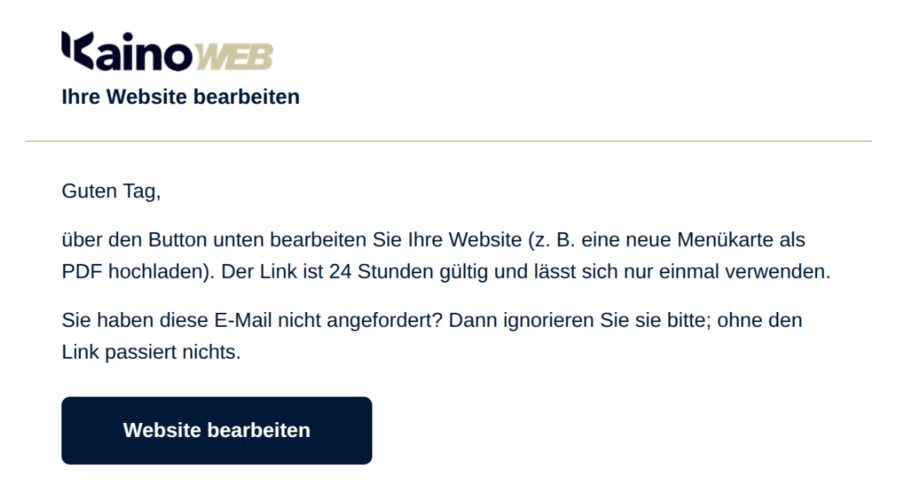
The sign-in page of koellich.com. - Open the emailWithin a few minutes you receive an email with the subject „Ihre Website bearbeiten“ (Edit your website). Click „Website bearbeiten“ (Edit website) in it. The link is valid for 24 hours and works once.
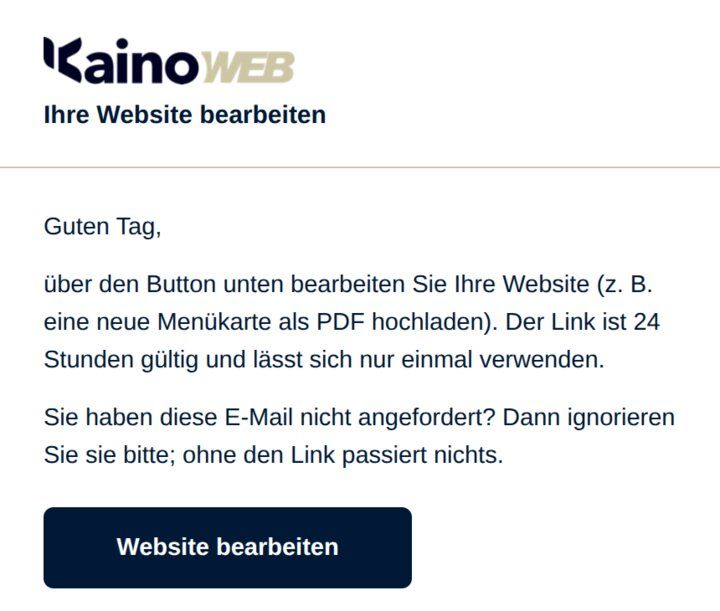
Example: the email with your link. - EditYour website opens with „Sie bearbeiten Ihre Website“ (You are editing your website) at the top. A small icon sits beside everything you can change directly. When you are finished, click „Abmelden“ (Sign out).
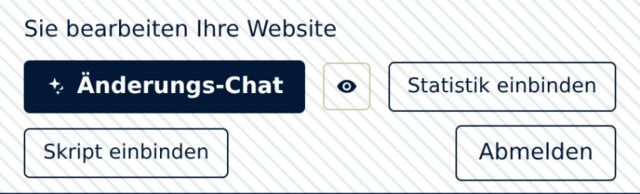
The bar at the top of your website.

Change a text
This is how you change a heading, a paragraph, a list or the label of a button.
- Sign inSign in and open the page with the text.
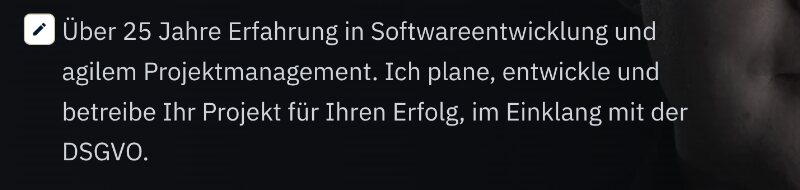
- Click the pencilA small pencil icon sits beside the text, beside a button an icon with a mouse pointer. Move the mouse over it: a frame shows what will change.
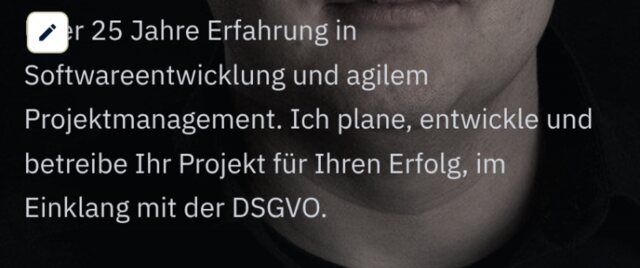
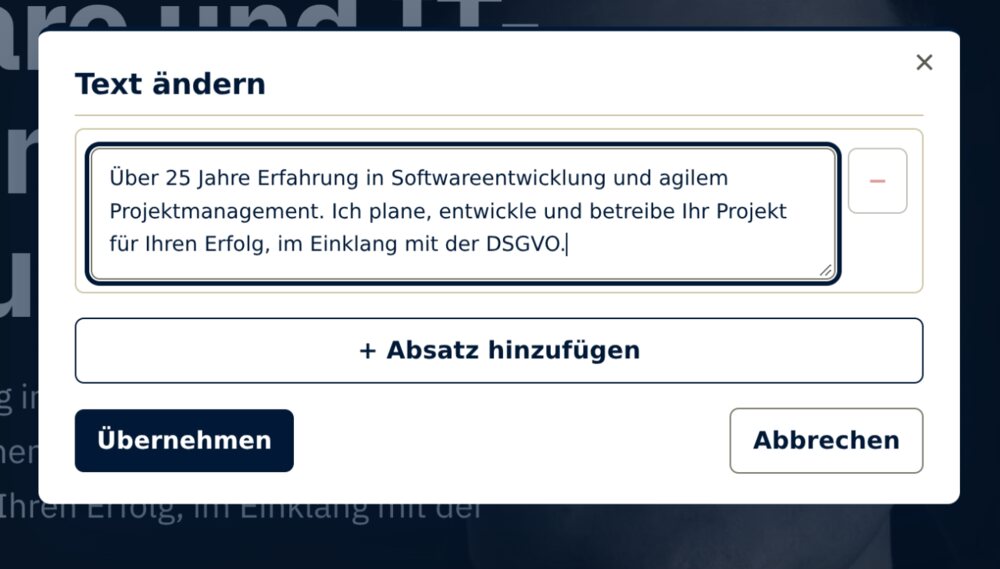
The pencil icon beside a text. - Write the textWrite the new text in the window „Text ändern“ (Change text). „+ Absatz hinzufügen“ (+ Add paragraph) adds another paragraph; in a list the button reads „+ Punkt hinzufügen“ (+ Add item). The minus beside an entry removes it.
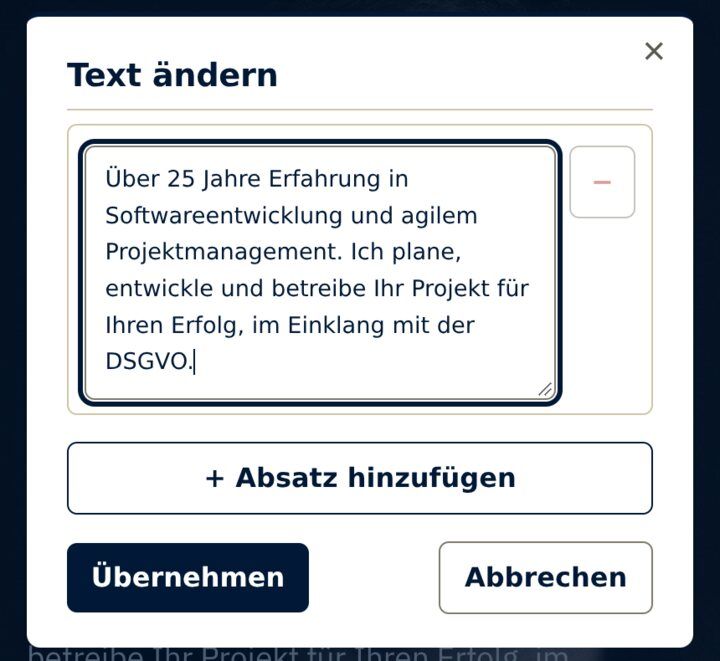
The window for changing a text. - ApplyClick „Übernehmen“ (Apply). The page now shows the new text, at first only to you.
- PublishClick „Veröffentlichen“ (Publish) at the top. More on this.
A direct change applies to this page in this language. If your website is in two languages, change the other version the same way or describe the request in the change chat. The eye icon in the bar hides the small icons so you can see the page without them.
Replace an image
This is how you replace an image on your website.
- Sign inSign in and open the page with the image.
- Click the image iconA small image icon sits in the corner of the image.
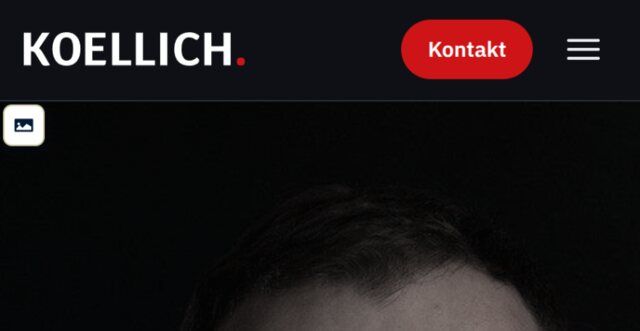
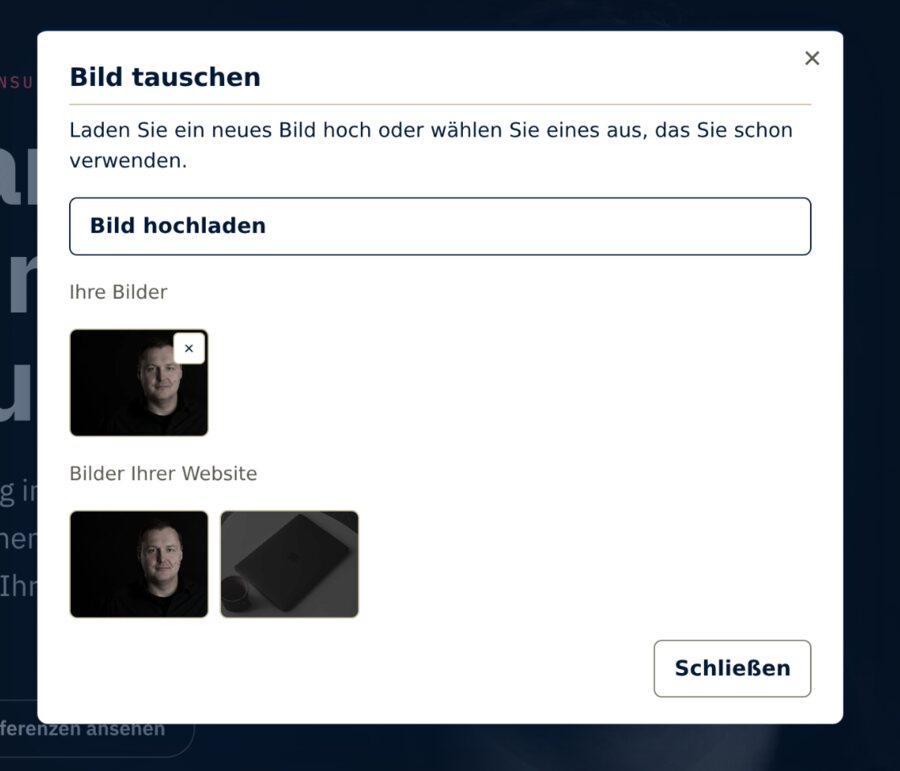
The image icon sits in the corner of the image. In the picture: Florian Köllich. - Choose the imageIn the window „Bild tauschen“ (Replace image), click „Bild hochladen“ (Upload image) and choose a file of up to 30 MB, ideally JPEG or PNG. Or click an image you already use under „Ihre Bilder“ (Your images) or „Bilder Ihrer Website“ (Images of your website).
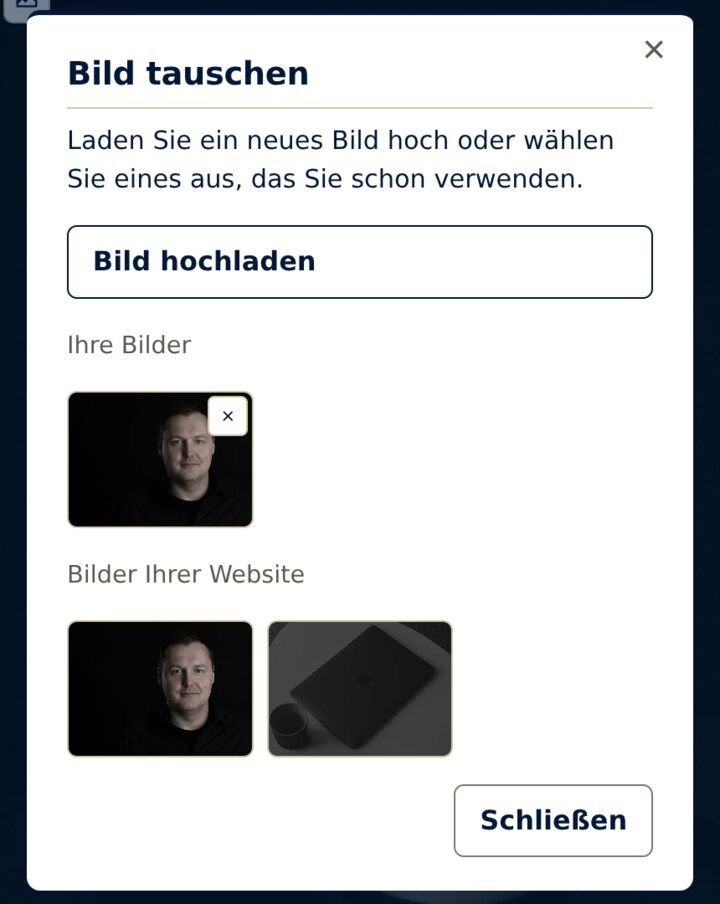
The window for replacing an image. - PublishClick „Veröffentlichen“ (Publish) at the top. More on this.

Publish or discard
What you change directly or in the chat is at first visible only to you. The bar then reads „Nur Sie sehen diesen Stand.“ (Only you can see this version.)
- CheckLook at the page. Your visitors still see the previous version.
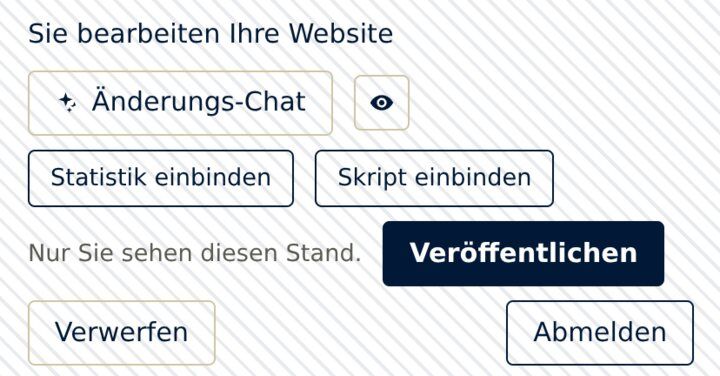
This is the bar when a change is waiting. - PublishClick „Veröffentlichen“ (Publish). All waiting changes are now visible to everyone.
- Or discard„Verwerfen“ (Discard) takes back everything not yet published. The website asks first.

The change chat
For everything without an icon: you describe the request, and the change appears on your website for you to check. The window is an AI chat. The AI carries out simple tasks directly, our team takes over more complex ones.
- Open the chatSign in and click „Änderungs-Chat“ (Change chat) at the top.
- Write your requestDescribe what should change, for example “Change Monday’s opening hours to 9 to 17”. For a new image, click „Bild anhängen“ (Attach image) and add what it is for. Then click „Senden“ (Send).
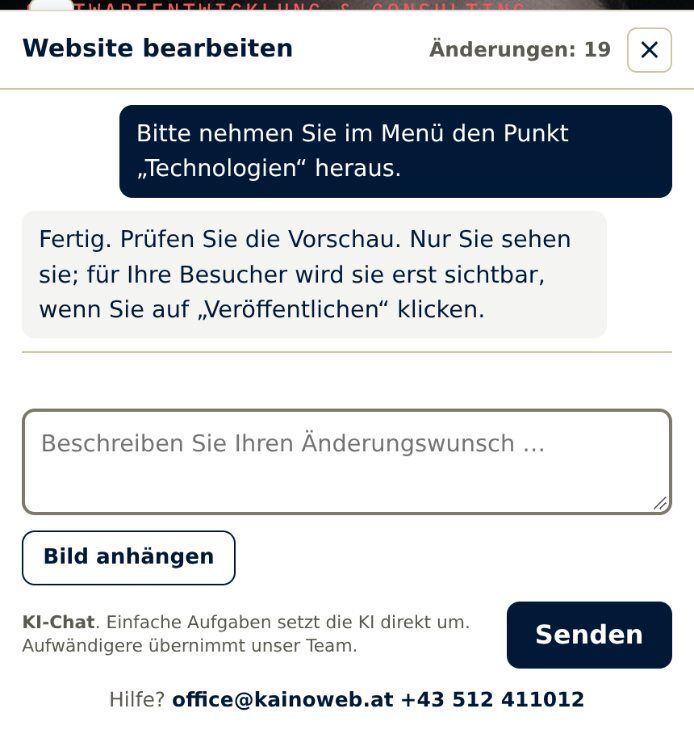
Example: a request in the change chat. - Check the previewAs soon as „Fertig. Prüfen Sie die Vorschau.“ (Done. Check the preview.) appears in the chat, the page shows the change, at first only to you.
- Publish or discardClick „Veröffentlichen“ (Publish) or „Verwerfen“ (Discard) at the top. More on this.
Your credit
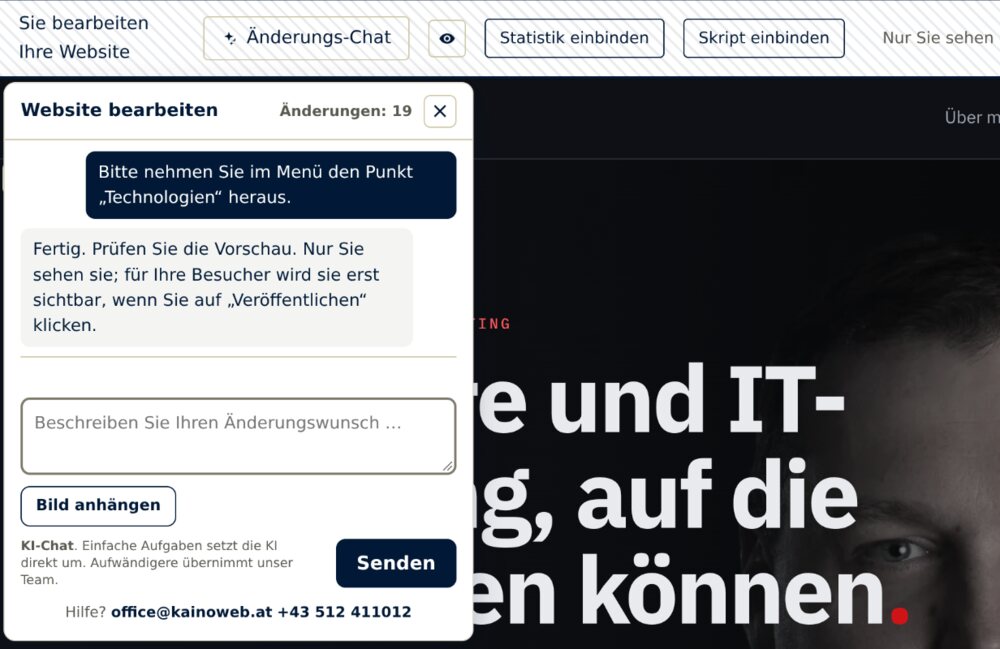
With your order you receive 20 changes through the chat, and 2 more at the start of each month. Unused ones stay. The chat window shows your credit, for example „Änderungen: 19“ (Changes: 19).
What you discard is not charged. Very large requests can count several times; the chat tells you beforehand. Texts and images you change directly use no credit.
Replace a menu or PDF
This works wherever we have set up the place for you. Tell us which file you want to replace yourself: contact.
- Sign inSign in and open the page with the file.
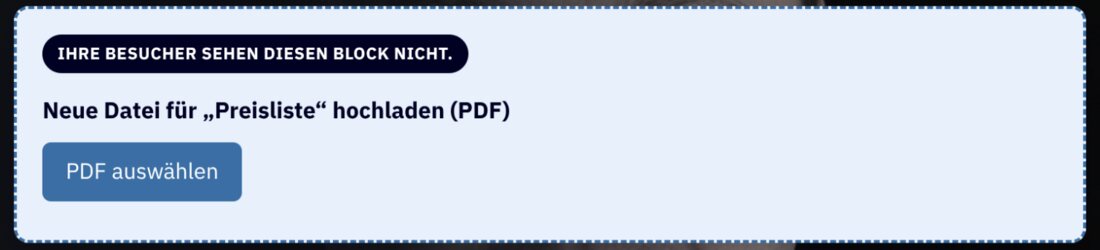
- Find the placeFor a menu, click the pencil icon „Karte ersetzen“ (Replace menu). For a file to download, the box sits directly above it. Your visitors do not see it.
- Choose the PDFClick „PDF auswählen“ (Choose PDF) and choose the new PDF, up to 10 MB.
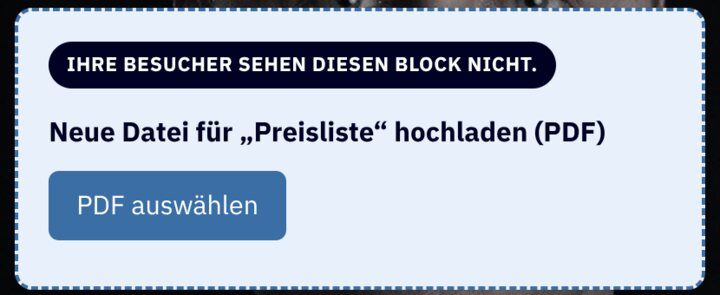
Example: the box for a price list. - WaitAs soon as „Aktualisiert. Der neue Inhalt ist jetzt sichtbar.“ (Updated. The new content is now visible.) appears, the new file is visible to everyone. You do not need „Veröffentlichen“ (Publish) here. A menu appears automatically in every language of your website, and you receive a confirmation by email.
Add analytics and scripts
This is how you add a service from another provider. The privacy policy and cookie policy are completed in every language. Saving takes effect at once, without „Veröffentlichen“ (Publish).
Google Analytics, Meta Pixel and the like
- Open the windowSign in and click „Statistik einbinden“ (Add analytics) at the top, then „Dienst hinzufügen“ (Add service).
- Enter the serviceChoose the service and enter the ID the provider gives you; for Google Analytics, the measurement ID starting with “G-”.
- SaveClick „Speichern“ (Save). Google services load once your website runs under your own domain.
Booking windows, widgets and other code
- Open the windowSign in and click „Skript einbinden“ (Add script) at the top, then „Skript hinzufügen“ (Add script).
- Paste the codePaste the code the provider gives you. „Erst nach Zustimmung laden“ (Load only after consent) is switched on.
- Check and saveClick „Speichern“ (Save). Then check the proposed provider details, confirm them and save again.
If a service loads without visitors’ consent, that is your responsibility and liability. We are glad to advise you.
If something does not work
The most common cases and what you can do.
- The email does not arrive.
- Check your spam folder. Probably a different address is on file; write to us and we will tell you the right one.
- You see „Dieser Link ist nicht mehr gültig“ (This link is no longer valid).
- Each link is valid for 24 hours and works once. Click „Neuen Link anfordern“ (Request a new link).
- You see „Ihre Sitzung ist abgelaufen.“ (Your session has expired.)
- Your changes are saved. Click „Hier neu anmelden“ (Sign in again here).
- I do not see my change.
- Reload the page: Ctrl+F5, on a Mac Cmd+Shift+R. If „Veröffentlichen“ (Publish) still shows in the bar, the change is not published yet.
- The image will not upload.
- The file can be up to 30 MB. If it still fails, save the image as JPEG or PNG and try again.
- A text has no pencil, or a paragraph is missing from the window.
- This text contains a link or bold type, or it belongs to the questions and answers. Change it in the change chat.
- The chat shows „Ihr Guthaben an Änderungen ist derzeit aufgebraucht.“ (Your credit of changes is used up for now.)
- 2 changes are added automatically at the start of the month. If you need more sooner, write to us.
For anything else we are glad to help: office@kainoweb.at, +43 512 411012
Free preview of your new website
We will create a proposal that will delight you.
Free and without obligation.